What Is a USB Flash Drive?
A USB flash drive is a compact, rewritable storage device with a built-in USB connector. Plug it into a compatible computer or other device and you can copy files onto it, unplug it, and take those files with you.
You may know the same device as a USB stick, thumb drive, pen drive, or jump drive. Whatever the name, the idea is the same: portable storage that does not need a cable, an account, or an internet connection.
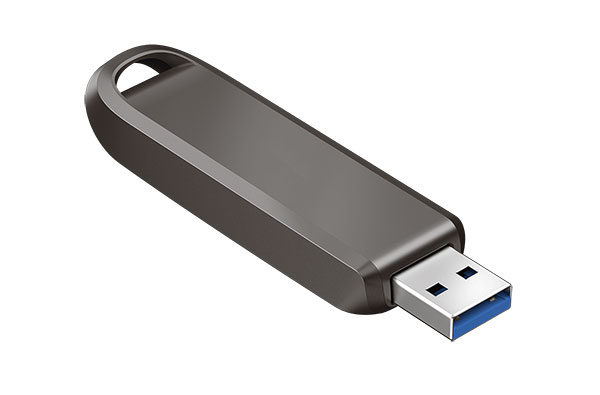
What is a USB Flash Drive?
The name is unusually literal. USB is the connection that carries power and data. Flash is the kind of memory that holds the files. Drive describes how the device behaves once it is connected: the computer treats it as a place where files and folders can be opened, copied, renamed, and deleted.
That last point is what makes a flash drive more than a memory chip with a plug attached. It is a complete removable storage device. The connector, memory, and electronics needed to manage the data all sit inside one small enclosure.
When a flash drive is plugged into a computer, it usually appears in File Explorer on Windows or Finder on macOS. Most drives work without a separate installation because major operating systems already include support for standard USB mass-storage devices.
How Does a USB Flash Drive Work?
From the outside, using a flash drive feels almost too simple to explain: insert it, copy a file, and remove it. Inside the drive, two components handle the storage work.
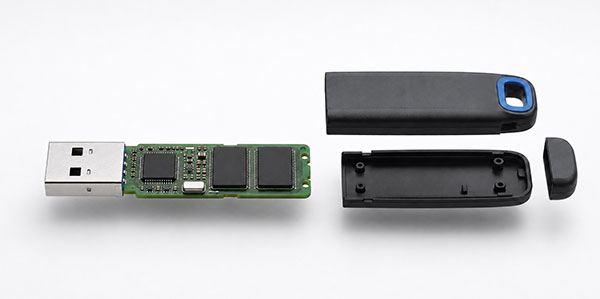
The flash memory stores the data. It is non-volatile memory, which means it does not need a continuous supply of power to remember what was written to it. That is why a document copied today can still be there the next time the drive is connected.
The controller sits between that memory and the device using the drive. It turns a request such as “save this file” into operations the memory can perform, keeps track of where the data is stored, and retrieves it when the file is opened again. The operating system does not need to manage individual memory locations; it sees a familiar drive containing files and folders.
The USB connector supplies the temporary power the drive needs while it is working and carries the data in both directions. No mechanical read head or spinning disk is involved, so the whole device can be much smaller than a portable hard drive.
This process happens quickly, but not always instantly. A computer may still be finishing a write after a progress window disappears. Waiting for the transfer to complete and using the eject command before removal reduces the chance of interrupting an unfinished operation.
What Are USB Flash Drives Used For?
The defining job of a USB flash drive is to move a self-contained set of files from one compatible device to another. It is especially useful when an online transfer would add friction: the internet is unavailable, an account is not appropriate, or the receiving equipment is not connected to a network.
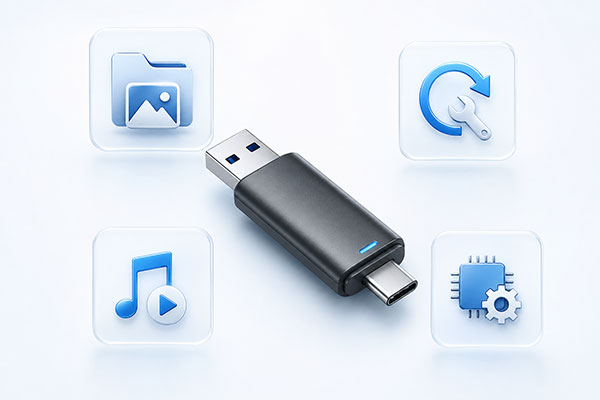
For ordinary users, that may mean carrying documents, photos, videos, or a project folder. The drive is not tied to one computer, so the same files can travel between home, work, school, or a service counter as long as the devices can read it.
Its role becomes more interesting when the file is needed before a computer’s normal software starts. A flash drive can be prepared as bootable media for installing an operating system, running recovery tools, or diagnosing a machine that will not start normally. IT teams still keep them nearby for exactly this reason.
USB drives also act as a simple delivery medium. A manufacturer can supply a firmware update on one; a business can preload catalogs or training material; a piece of offline equipment can read configuration files from it. In these cases, the value is not huge capacity. It is the ability to put the required data into a form the receiving device already understands.
A USB port alone does not guarantee compatibility. Some ports provide power but do not read storage, and older or specialized equipment may accept only certain capacities or formats. The flash drive is straightforward; the device on the other end still decides what it can use.
When Was the USB Flash Drive Invented?
The flash drive arrived around 2000, when two existing technologies finally made a useful pair. USB offered a common port for connecting peripherals, while flash memory could retain data without a battery. Put them in one enclosure and files no longer needed a floppy drive, optical disc, or separate card reader to travel.
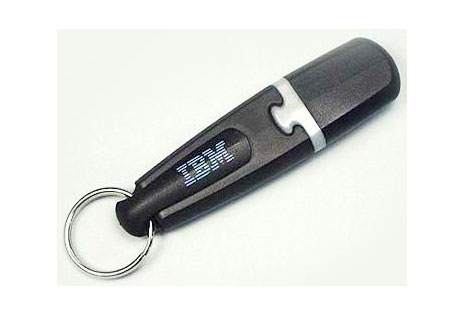
The history includes competing claims over who produced the first USB Flash Drive, but the first commercial drives appeared at roughly the same time. One early example, the IBM DiskOnKey developed by M-Systems, stored 8MB. That sounds tiny now, but it held more than five standard 1.44MB floppy disks and was far easier to rewrite.
Capacity helped, but the bigger change was the workflow. A user could plug in one object, copy a file, unplug it, and use the same storage again. The capacities and connectors have changed dramatically since then; that four-step idea has not.
What Types of USB Flash Drives?
For most people, the most meaningful difference between flash drive types is the connector.
A USB-A flash drive has the familiar rectangular plug found on many desktop computers, older laptops, TVs, printers, and industrial systems. A USB-C flash drive has the smaller reversible connector now common on phones, tablets, and newer computers. A dual-connector drive includes both, which is useful when files need to move between older USB-A equipment and a newer USB-C device.
The shape of the connector does not tell you how fast the drive will be. USB-C is a plug design, not a speed guarantee. A USB-C drive can be slower than a well-made USB-A drive, and either one may be limited by the port it is connected to.
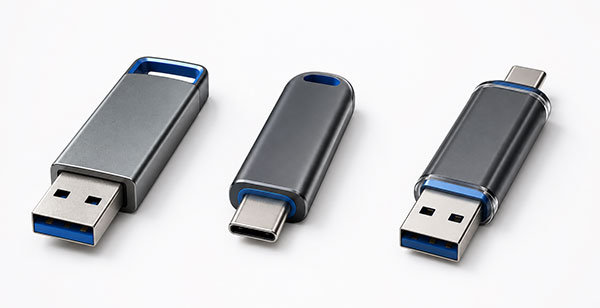
Some drives are defined less by their connector than by the problem they are built to solve. Encrypted drives add controls for sensitive data. Rugged models place the electronics in a stronger or sealed enclosure. Industrial USB drives may use controlled components, extended-temperature designs, and longer product lifecycles for equipment that must remain consistent over time.
These are variations on the same device, not different storage formats. They all combine flash memory, a controller, and a USB connection in a removable drive.
USB Flash Drive Capacity and Speed
Capacity answers one question: How much data will fit? Speed answers another: How long will the transfer take? The two are independent. A higher-capacity drive is not automatically a faster one.
Flash drives are sold in capacities ranging from a few gigabytes to amounts measured in terabytes. The usable space shown by a computer will normally be a little lower than the number printed on the drive. Part of the difference comes from how manufacturers and operating systems count bytes, and a small amount is used by formatting information.
Speed labels need more care. A USB generation or a mark such as USB 5Gbps describes the maximum data rate of the connection, not the speed the memory inside the drive can sustain.
The actual result depends on the drive’s controller and memory, the USB port, and the files being copied. Read speeds are often higher than write speeds. One large video usually transfers more efficiently than thousands of tiny documents. A fast drive also slows down when connected to an older port.
This is why two drives bearing similar USB labels can feel very different in use. The interface sets the upper limit; the design of the drive determines how close it gets.
USB Flash Drive Vs SSD Vs Memory Card
A USB flash drive, an external SSD, and a memory card can all use flash memory, but they are packaged for different jobs.
An external SSD is built for heavier storage work. It generally offers much higher sustained read and write speeds, manages heat more effectively, and often comes in larger capacities. It is the better choice for regularly moving very large projects, editing media from external storage, or running applications. A USB flash drive gives up some of that performance in exchange for a device that is smaller and needs no separate cable.
An SD or microSD memory card card is designed to sit inside a device such as a camera, recorder, or phone. It has no built-in USB plug, so a computer needs the right card slot or a reader. A flash drive packages the storage and connection together.
They belong to the same broad family, but they are not interchangeable. The connector, physical design, controller, and intended workload all matter.
Are USB Flash Drives Still Useful Today?
Yes—but for a more specific reason than they once were.
Cloud services are better for collaboration and access from several places. External SSDs are better for sustained speed and large working collections. A USB flash drive remains useful when the priority is a direct, portable handoff: a limited set of files, one small object, and no dependency on a network or account.
The USB flash drive has survived because the task it performs has survived. Digital files sometimes need a physical route from one device to another, and few storage products make that route simpler. That makes it a good fit for file delivery, boot and recovery media, firmware updates, and equipment that expects removable USB storage.
For organizations using USB drives to distribute preloaded files or support repeat equipment orders, consistency can matter more than a novelty shape or headline capacity. Neomory supplies USB flash drives in bulk and develops custom USB flash drive solutions for those projects.
