What Is a Micro SD Card?
Small enough to sit on a fingertip, a microSD card gives compact devices extra room for photos, video, games, apps, and other files. It is the tiny storage card found in many dash cams, action cameras, handheld game systems, phones, and embedded devices.
The cards themselves all look almost identical. The confusion usually begins when you try to buy one: 32GB or 256GB, microSDHC or microSDXC, U3 or V30, A1 or A2. Some labels describe capacity, others describe speed, and the largest or fastest card is not always the one your device can use.
What matters in practice is straightforward: what the card needs to store, how quickly the device writes to it, and which card types the device supports. Once those three questions are separated, the markings on a microSD card become much easier to read.
Types of microSD Cards
Although the names differ, microSD, microSDHC, microSDXC, and microSDUC all use the same 15 × 11 mm form factor. The letters after “microSD” identify the card’s capacity family and the storage standard it follows.
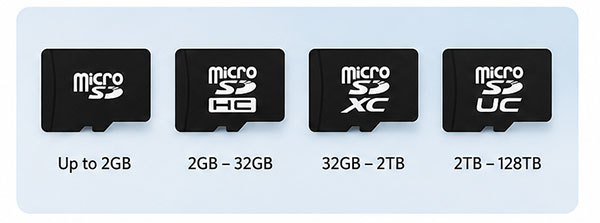
| Card type | Capacity range | Standard file system | What it means in practice |
| microSD | Up to 2GB | FAT12 or FAT16 | Mainly found in older or capacity-limited equipment |
| microSDHC | More than 2GB to 32GB | FAT32 | Common where a device supports no more than 32GB |
| microSDXC | More than 32GB to 2TB | exFAT | Covers most higher-capacity cards in everyday use |
| microSDUC | More than 2TB to 128TB | exFAT | Requires a device that explicitly supports microSDUC |
microSD
The original microSD standard covers cards up to 2GB. These small capacities still matter when replacing storage in equipment designed before microSDHC and microSDXC became common. A 1GB or 2GB requirement may be a compatibility limit rather than a preference.
microSDHC
microSD High Capacity covers cards above 2GB and up to 32GB. It normally uses FAT32 and remains common in older cameras, recorders, navigation units, and other devices with a stated 32GB limit.
microSDXC
microSD Extended Capacity begins above 32GB and extends to 2TB. A 64GB, 128GB, 256GB, 512GB, or 1TB card belongs to this family, even when a product listing casually calls it only a “microSD card.” The host needs microSDXC support to recognize the standard correctly.
microSDUC
microSD Ultra Capacity extends the range beyond 2TB to 128TB. The matching slot may look the same, but support has to be stated by the device manufacturer. For most existing devices, microSDHC or microSDXC remains the relevant choice.
Compatibility generally runs from newer hosts to earlier card families. A microSDXC-compatible device can usually use a microSDHC card, while a microSDHC-only device may fail to recognize microSDXC even though the card fits.
microSD Card Symbols and Speed Classes Explained
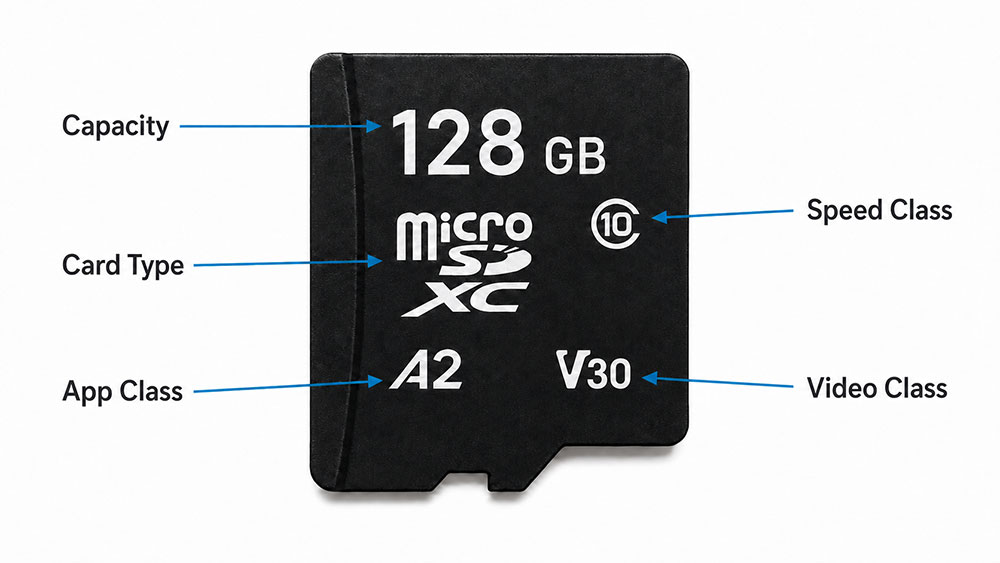
The front of a microSD card can look like alphabet soup. A capacity number sits beside symbols such as C10, U3, V30, A2, or a Roman numeral. Read them as separate labels: each one answers a different question.
| Marking | What it tells you |
| 32GB, 128GB, 1TB, etc. | How much data the card is designed to hold |
| microSDHC, microSDXC, or microSDUC | Which capacity family the card belongs to |
| C2, C4, C6, or C10 | Original Speed Class and minimum sequential write speed |
| U1 or U3 | UHS Speed Class and minimum sequential write speed |
| V6 to V90 | Video Speed Class and minimum sequential write speed |
| A1 or A2 | Performance class for apps and small-file activity |
| I, II, or III | UHS bus generation supported by the card |
| microSD Express mark | Support for the Express interface in a compatible device |
| “Up to 160MB/s,” for example | A manufacturer-rated peak speed, often for reading |
C, U, and V Speed Classes
Video arrives at the card continuously. If the card cannot save that data quickly enough, recording may stop, frames may be dropped, or the device may reject the selected mode. The C, U, and V symbols all describe a guaranteed minimum sequential write speed under their respective standards.
- C2: Minimum sequential write speed 2MB/s
- C4: Minimum sequential write speed 4MB/s
- C6, V6: Minimum sequential write speed 6MB/s
- C10, U1, V10: Minimum sequential write speed 10MB/s
- U3, V30: Minimum sequential write speed 30MB/s
- V60: Minimum sequential write speed 60MB/s
- V90: Minimum sequential write speed 90MB/s
Many cards carry more than one of these marks because the ratings come from different systems. On a card labeled C10, U3, and V30, both U3 and V30 indicate at least 30MB/s of sequential writing.
These are minimums rather than peak claims. Two V30 cards may both stay above 30MB/s while advertising different maximum read speeds. When a camera asks for V30, look for the V30 mark; a separate claim such as “up to 160MB/s” usually describes something else. The SD Association’s Speed Class guide explains the guarantee behind each mark.
Application Performance Class: A1 and A2
A1 and A2 address a different kind of work. Apps, maps, and game files often involve many small reads and writes rather than one continuous video stream. The Application Performance Class rates the card for that pattern.
A2 has higher performance requirements than A1, but the device also needs to support the features used to reach full A2 performance. For a camera, the required U or V rating is usually the more useful mark. For a device that runs apps or frequently loads small files from the card, A1 or A2 carries more meaning. The SD Association’s Application Performance Class page provides the formal requirements.
UHS Bus Marks and microSD Express
The Roman numeral I, II, or III describes the connection used to move data between the card and the host. U1 and U3 are write-speed classes; UHS-I, UHS-II, and UHS-III identify interface generations.
Faster interface support has to exist at both ends. A card cannot transfer at UHS-II speed through a reader or device that supports only UHS-I.
microSD Express takes another step by adding a PCIe/NVMe-based interface to the microSD form factor. Express speeds require an Express-compatible host, which makes the device specification more useful than the familiar shape of the card.
What Are microSD Cards Used For?
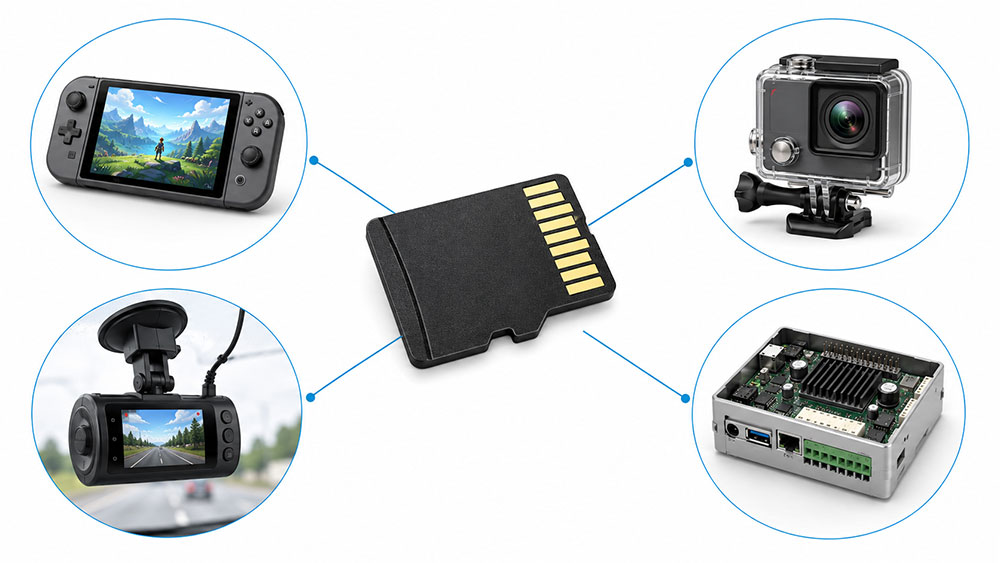
microSD cards are used wherever a device needs removable storage but has little room for a full-size SD card.
In a phone, tablet, or handheld game system, the card may provide space for photos, downloads, offline maps, apps, or games. Here, the main concern is usually having enough capacity without exceeding the limit set by the device.
Cameras give the card a more demanding job. An action camera or drone writes a steady stream of data while recording, so the card has to keep pace. A card can have plenty of free space and still be unsuitable if its write speed is too low for the selected video mode.
Dash cams and security cameras place a different kind of strain on storage. They record for long periods, fill the card, and overwrite old footage again and again. For that workload, endurance can matter more than the highest speed printed on the package.
A microSD card can also serve as the main storage inside embedded or industrial equipment. It may hold an operating system, settings, logs, or collected data. These applications often care about consistent compatibility, temperature range, endurance, and long-term availability as much as capacity.
The same card shape therefore appears in very different situations. A card used for a music collection has a much lighter job than one recording video around the clock, and the right specifications follow from that difference.
What Makes a microSD Card Compatible with a Device?
Because every microSD card has the same basic shape, compatibility can appear simpler than it is. A card may slide into the slot perfectly and still be the wrong capacity family, format, or speed for the device.
Capacity is a common dividing line. An older dash cam rated for cards up to 32GB is normally built around microSDHC. A 128GB microSDXC card fits the same opening, but the camera may fail to recognize it. Even within microSDXC, manufacturers can set their own maximum capacity, such as 128GB, 256GB, or 512GB.
Formatting is another part of the match. microSDHC cards normally use FAT32, while microSDXC and microSDUC normally use exFAT. A device may ask to format a supported card before first use, and its own format option usually creates the layout it expects. Formatting can correct a file-system or layout issue. Recognition of a newer card standard depends on the device itself.
Then there is performance. A camera may recognize a card but stop recording in a demanding video mode if the card cannot maintain the required write speed. At the other end, the host’s interface sets the ceiling even when the card is capable of more.
The most useful line in a device manual often looks something like “microSDXC up to 512GB, UHS-I, U3/V30.” That single line covers the card family, capacity ceiling, interface, and minimum recording performance. When the manual gives less detail, the manufacturer’s compatibility list or support page is a safer reference than the figures on the card package.
Embedded and industrial equipment may add requirements that are rarely visible in a consumer manual. A card might also need to operate across a wider temperature range, tolerate frequent writing, remain available for years, or keep the same qualified configuration across production batches.
How to Choose a microSD Card for Your Device
Memory-card packaging tends to put the largest numbers first. That makes it tempting to choose the card with the most capacity or the highest advertised speed. In practice, the best starting point is the device rather than the card display.
Find the supported card family and maximum capacity, then look for any named speed class. If the manual says microSDXC up to 256GB and V30, those are the boundaries. A 512GB card is outside the stated range, while a V10 card may be too slow for the recording mode. A faster V60 card may work, but it offers little practical advantage if the device never writes beyond V30 requirements.
After compatibility is settled, capacity becomes a question of use. Someone who regularly transfers short clips may be comfortable with a smaller card. A long trip, a large game library, or days of surveillance footage calls for more space. Larger capacity also means more data is tied to one tiny object, so important files still need a separate backup.
Workload can change the type of product worth buying. Occasional photo storage is relatively light. Continuous recording repeatedly fills and overwrites the card, making a high-endurance model a better fit. Industrial use can add temperature and long-service requirements that are not covered by an ordinary consumer speed label.
| If you are buying for… | Pay closest attention to… |
| A phone, tablet, or handheld device | Supported capacity and A1/A2 if apps or many small files use the card |
| An action camera or drone | The U or V class named for the recording mode, plus capacity support |
| A dash cam or security camera | High-endurance design, write-speed requirement, capacity, and temperature range |
| A gaming system | The exact card family the console supports, including whether it calls for microSD Express |
| Embedded or industrial equipment | Validated capacity, endurance, temperature, configuration consistency, and supply continuity |
Source matters as well. Counterfeit cards may report a capacity they cannot actually store or carry speed labels they cannot sustain. Buying through a traceable channel and testing the card in the target device is especially valuable when footage, system data, or a large deployment depends on it.
For OEM and industrial projects, choosing a card is often a qualification decision rather than a one-time retail purchase. Long-term availability and controlled configuration changes can be just as important as the specifications printed on the label.
microSD vs SD Card: What Is the Difference?
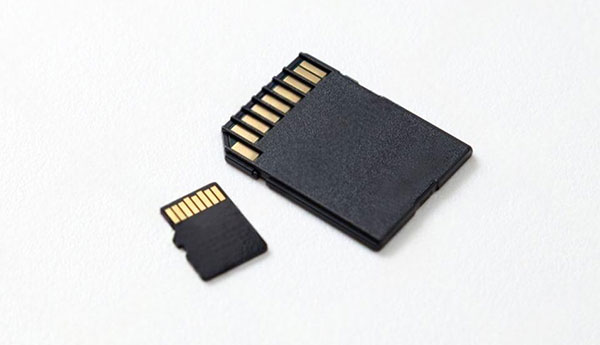
Place the two cards side by side and the main difference is obvious: microSD is much smaller. Both belong to the Secure Digital family and use the same capacity and speed-class system, but they are made for different-sized slots.
| Feature | microSD card | Full-size SD card |
| Dimensions | 15 × 11 × 1 mm | 32 × 24 × 2.1 mm |
| Common uses | Phones, compact cameras, drones, handheld systems, and embedded devices | Cameras, computers, audio equipment, and other larger devices |
| Capacity names | microSD, microSDHC, microSDXC, microSDUC | SD, SDHC, SDXC, SDUC |
| SD adapter | Can fit a full-size SD slot through an adapter | Cannot fit a microSD slot |
| Write-protect tab | No tab on the card | Usually has a tab on the left edge |
| Speed markings | C, U, V, A, UHS, and Express where supported | Uses the same main rating systems |
A full-size SD adapter gives the smaller card the shape and contacts needed for an SD slot. Its job ends there: storage capacity, speed, and compatibility still depend on the microSD card and the device.
The write-protect switch sometimes found on an SD adapter belongs to the adapter, not the microSD card itself. It signals a compatible reader to treat the card as read-only; it does not physically lock the data inside the microSD card.
microSD Card FAQs
Q: What does microSD stand for?
A: SD stands for Secure Digital. “micro” identifies the smallest physical card format in the SD family.
Q: Is a microSD card the same as a TF card?
A: In most current product listings, yes. TF stands for TransFlash, the earlier name for the format that later became microSD. “microSD” is now the official standard name.
Q: Can any microSD card work in any microSD slot?
A: No. The shape is the same, but the device may support only certain capacity families, maximum capacities, file systems, or speed modes. A card can fit physically and still go unrecognized.
Q: Can I use a microSD card in a full-size SD slot?
A: Yes, with a passive SD adapter, provided the device also supports the card’s capacity family and speed requirements. The adapter changes the fit while the card keeps its original specifications.
Q: Is microSDXC better than microSDHC?
A: microSDXC offers capacities above 32GB, while microSDHC stops at 32GB. That makes microSDXC more useful when a compatible device needs additional space. For equipment limited to microSDHC or 32GB, microSDHC is the correct card rather than an inferior one.
Q: Why is my microSD card not working?
A: Common causes include an unsupported card family or capacity, a file system the device does not recognize, a card that needs to be formatted in the device, damaged contacts, a failing card, or a counterfeit card reporting false specifications. Back up any accessible files before formatting or testing repairs.
Q: Can I format a large microSD card to work in an older device?
A: Formatting sometimes resolves a file-system mismatch. When the hardware or firmware supports only microSDHC, however, the card remains subject to that limit. The manufacturer’s maximum-capacity specification is the safer boundary.
Q: Do I need a microSD Express card?
A: Choose microSD Express when the host requires or explicitly supports it and can use the faster interface. A conventional UHS host still operates within its own interface limit, even though the cards share the microSD form factor.
